Webcam & Microphone Check
Verify your camera and microphone are working correctly before you begin your online proctored exam.
Step 1
Test your webcam
ⓘ Instructions
- Please click on the "Capture photo" button to see the captured photo. If your captured photo is neat and clear, then click on the "Continue to Audio Test" button to test your machine's audio.
- If the live webcam is not visible, please refresh the page.
🔴 Live Webcam
🖼 Captured Photo
![]()
Captured photo will appear here
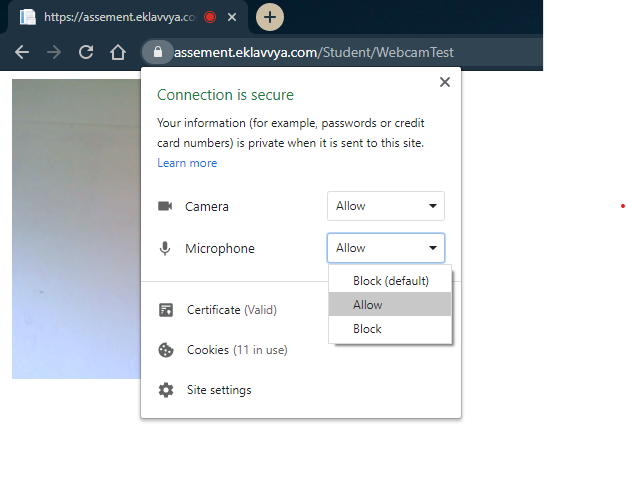
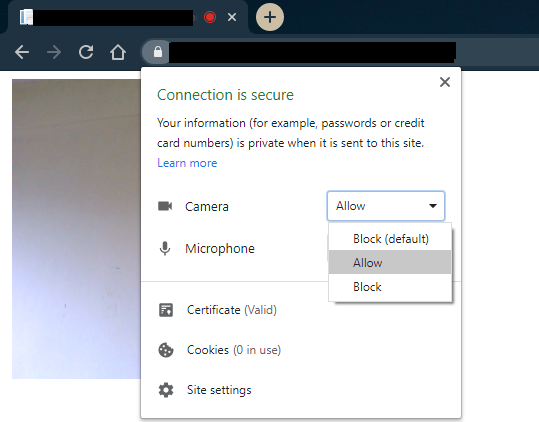
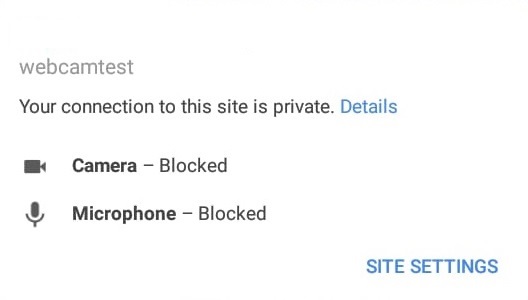
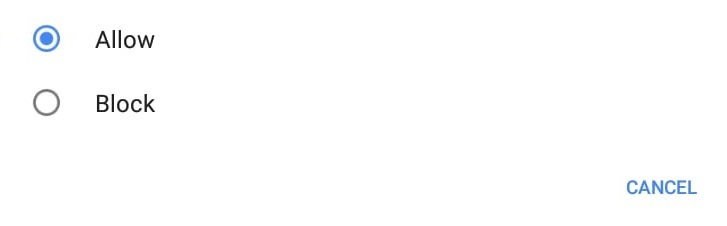
Steps to enable Web-Camera on Google Chrome or Microsoft Edge
💻 For Desktop / Laptop
📱 For Mobile Device
Browser Guide
Enable Camera in Your Browser
Google Chrome
- Click the lock icon 🔒 in the address bar
- Find Camera and Microphone
- Set both to "Allow"
- Reload the page
Microsoft Edge
- Click the lock icon 🔒 in the address bar
- Click "Permissions for this site"
- Set Camera & Microphone to "Allow"
- Reload the page
Devices
Device-Specific Instructions
Windows — Camera Privacy Settings
- Press Win + I to open Settings
- Go to Privacy & Security → Camera
- Make sure "Camera access" is turned On
- Scroll down — make sure your browser (Chrome / Edge) is toggled On
- Close & reopen the browser, then reload the exam page
Settings → Privacy & Security → Camera → Toggle On
macOS — Camera & Screen Recording Permissions
- Open System Settings (Apple menu → System Settings)
- Go to Privacy & Security → Camera
- Check the box next to Google Chrome (or your browser)
- For screen-sharing proctoring: go to Privacy & Security → Screen Recording and enable your browser
- Completely quit the browser (Cmd + Q) and reopen it
System Settings → Privacy & Security → Camera → Enable Browser
Android Phone — Chrome Camera Permissions
- Open your phone's Settings app
- Go to Apps (or Applications)
- Find and tap Google Chrome
- Tap Permissions
- Tap Camera and select "Allow"
- Also set Microphone to "Allow"
- Go back to the exam page and reload
Settings → Apps → Chrome → Permissions → Camera → Allow
iPhone — Known Limitations
- Open Settings → scroll to Safari (or Chrome)
- Tap Camera and set to "Allow"
- Also allow Microphone
⚠ Important: Due to iPhone security restrictions, camera permissions may be blocked or limited during exams. We strongly recommend using an Android phone or a laptop/desktop instead.